How to Advertise on ChatGPT: A UK Setup Walkthrough With Screenshots

ChatGPT's ad platform is a few months old in the UK and it is still labelled beta. That makes most setup guides out of date within weeks, including some of what OpenAI's own older pages say. This walkthrough was written on 11 November 2026 from two sources only: OpenAI's current help centre, and our own UK Ads Manager account, which is where every screenshot comes from.
One note on those screenshots. They show the edit screens of campaigns that already exist in our account. The creation screens ask for the same fields, but we did not create a new campaign for this guide, so where the creation flow differs we say what OpenAI's documentation says and no more.
If you are still deciding whether to bother, start with our ChatGPT Ads guide. For budgets, see what ChatGPT Ads cost in the UK. If you would rather not do this yourself, that is what our ChatGPT ads agency service is for.
What you need before you start
Have these ready
- ✓One person who will own the account and invite everyone else
- ✓An OpenAI login on a work email address
- ✓Your registered business name and address, for billing and verification
- ✓A business card issued in the UK
- ✓Your logo, which is shown beside your ads
- ✓A specific landing page for each thing you want to advertise
- ✓One conversion you care about: an enquiry, a booking or a sale
- ✓A budget of at least £15 a day for two to three weeks
Free PDF
Get the ChatGPT Ads UK setup checklist
Every step in this walkthrough as a three page tick list you can work through with Ads Manager open, plus the numbers to know and a plan for the first fortnight.
Step 1: Create your Ads Manager account
Go to ads.openai.com and choose Login or Sign up. You can sign in with the OpenAI account you already use for ChatGPT.
OpenAI then offers two ways in:
- Start with your website. You enter your URL, Ads Manager drafts an ad from it, and you build a first campaign during sign-up.
- Skip that and go straight to Ads Manager. You create the account now and the campaign later.
If you are not ready to spend, take the second route. OpenAI's own sign-up notice for the first route reads "Your ads will go live once they pass review", and it means it. An ad made during sign-up can start serving, and billing, as soon as review, billing and account checks are complete.
The advertiser name you type at sign-up is copied into three separate fields: Account Name, Brand Name and Legal Name. You can edit them later under Settings, then General, but with consequences:
| Field | Where it shows | If you change it later |
|---|---|---|
| Account Name | Inside Ads Manager only | Nothing happens |
| Brand Name | Publicly, beside your ads in ChatGPT | Ads pause until the new name is approved |
| Legal Name | On invoices and in business verification | Business review restarts and ads may pause |
So get the Brand Name right before you launch anything.
Step 2: Set up billing and verification
Billing must be complete before a campaign can deliver. There are two parts:
- A billing profile: business name, business address and the email address invoices should go to.
- A payment method: your card details. OpenAI says the card should match the country the account was created for, so use a UK card on a UK account.
When you add the card you may see a temporary authorisation hold. It is a check, not a charge, and OpenAI says it can stay visible on your statement for eight days or more.
ChatGPT Ads are postpaid. Spend builds up and the card is charged when the balance reaches your account's payment threshold, then again at month end for anything left over. Our UK account is billed in pounds with a £25 threshold. You cannot choose the threshold. OpenAI raises it automatically as payments clear. The threshold is only a billing trigger. It does not cap what your campaigns spend, so do not rely on it as a safety net. Tax comes on top: when our account reached its £25 threshold the invoice was for £30.00, which matches 20% UK VAT.
While you are in settings:
- Upload your logo and confirm the three names under Settings, then General.
- Complete business verification when Ads Manager asks for it. Our account shows its advertiser type as Business, and a note that changing the type requires verifying again.
- Invite your team under Settings, then Users. The roles are Admin (full access), Member (create and manage campaigns) and Viewer (read only).
If you manage more than one business, OpenAI's guidance is one ad account per advertiser, all reachable from the same login.
Step 3: Set up tracking before you spend
It is tempting to leave this until the ads are running. Do it first. A campaign without conversion tracking can only tell you what a click costs, never what it was worth.
In Ads Manager, open Conversions. The setup panel lists four steps:
- Create a data source. For a website this is the OpenAI pixel.
- Create a conversion event for the result you care about.
- Implement and log the event on your site, then check it arrives in the Event Stream tab.
- Link the event to a campaign.
OpenAI's documentation makes a point worth repeating: setting up the pixel does not prove that events are arriving. Trigger the conversion yourself and find it in the Event Stream before you trust it. If you can, add the Conversions API as well, which sends events from your server and is not affected by ad blockers. OpenAI also documents a way to connect Google Analytics 4 to Ads Manager, and our guide to tracking AI traffic in GA4 shows how to see ChatGPT visits in your own reports.
Two more things to do at this stage:
- Let OpenAI's crawlers in. Landing pages must be reachable and must not block
OAI-AdsBotorOAI-SearchBot. Check your robots.txt and any firewall or bot protection. - Decide your tracking parameters. Campaigns, ad groups and ads each have a tracking parameters field that appends values to your link, with placeholders for the campaign, ad group and ad IDs. You can also put UTM tags straight on the ad's URL.
Step 4: Create a campaign
Everything in Ads Manager follows one structure. A campaign holds the objective, budget, dates and location. An ad group holds the bid and the context hints. An ad holds the creative.
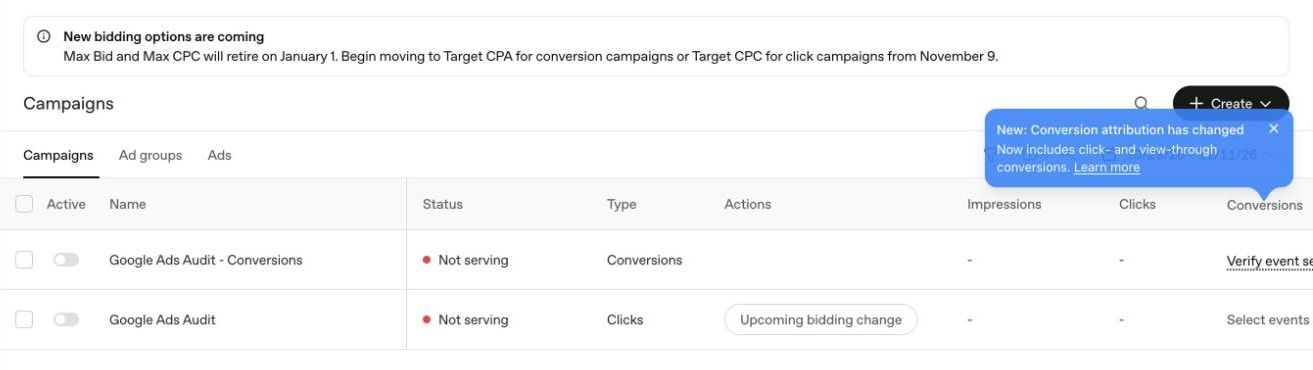
Select Create, then Create campaign. The Create menu also offers Create ad group, Create ad and Upload bulk, which builds campaigns from a spreadsheet template.
Objective
You pick one of three, and the choice decides what you are billed for:
- Views (called Reach in some of OpenAI's pages): you pay per thousand impressions.
- Clicks: you pay per click.
- Conversions: the system optimises towards your conversion event. You are still billed for clicks or impressions, never per conversion.
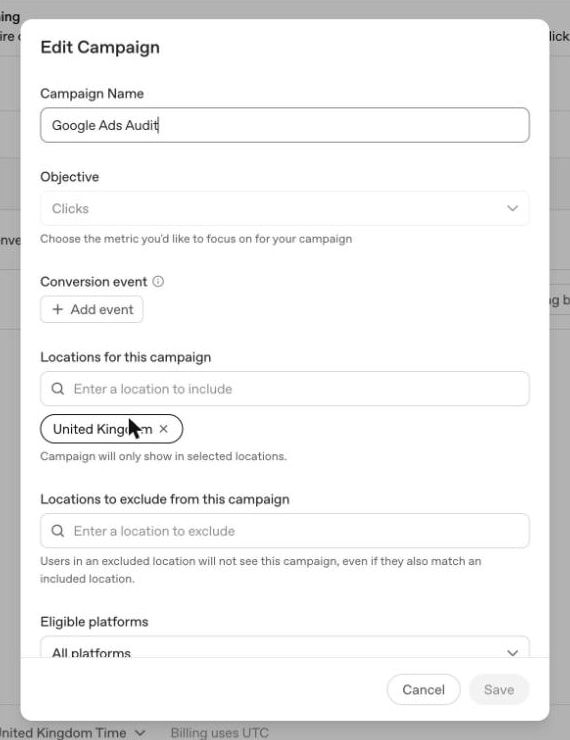
OpenAI's documentation says a campaign keeps its objective for life. To change it you create a new campaign. In our account the Objective field on an existing campaign is greyed out, which matches.
For a first test we would choose Clicks unless your conversion event is already receiving real events. A Conversions campaign with no signal to learn from has nothing to optimise towards.
Location and platforms
Add the United Kingdom under Locations for this campaign. You can also exclude places, and an excluded location wins if someone matches both. Eligible platforms is set to All platforms on ours.
Further down the same screen are two custom audience boxes, one to include and one to exclude. They need an uploaded audience, and OpenAI's developer documentation says an audience must reach 25,000 matched users before it can be targeted, so most small businesses can leave both empty.
Budget and dates
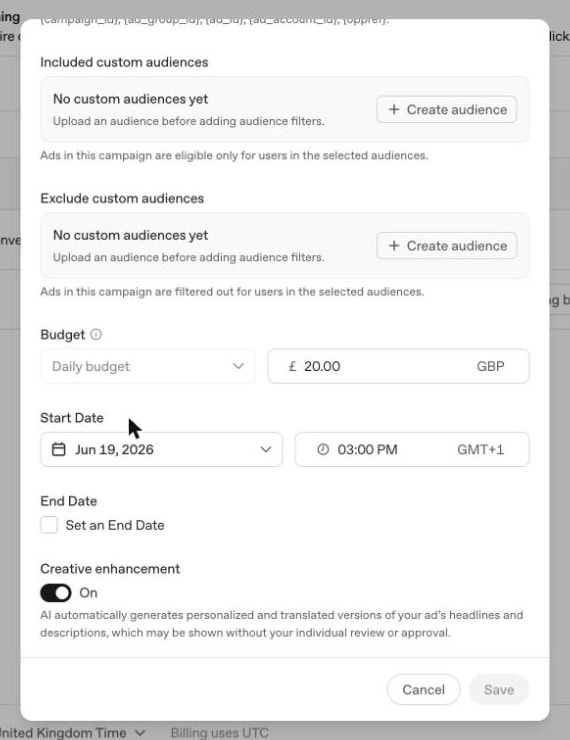
Choose a daily budget or a campaign total. OpenAI recommends a daily budget if you are new. Three rules apply:
- The minimum daily budget on a GBP account is £15.
- A daily budget is an average. One day can bill up to twice the figure, and one budget week, Sunday to Saturday, will not bill more than seven times it.
- You can move from a total budget to a daily one, but not back.
One quirk from OpenAI's quickstart: on your very first campaign you may not be offered start and end dates before you publish. They appear when you edit the campaign afterwards. OpenAI's advice is not to publish just to reach those settings, because the ads could start before you have set the schedule.
Creative enhancement
At the bottom of the campaign screen is a switch called Creative enhancement, and on our account it was on. The wording beside it says AI "automatically generates personalized and translated versions of your ad's headlines and descriptions, which may be shown without your individual review or approval".
Decide this deliberately. If your copy is regulated, legally checked or simply precise, turn it off. If you are happy for OpenAI to adapt the wording, leave it on and read your ads in the wild now and then.
Step 5: Create an ad group
The ad group is where targeting happens, such as it is. There are no keywords, no demographics and no interests to pick.
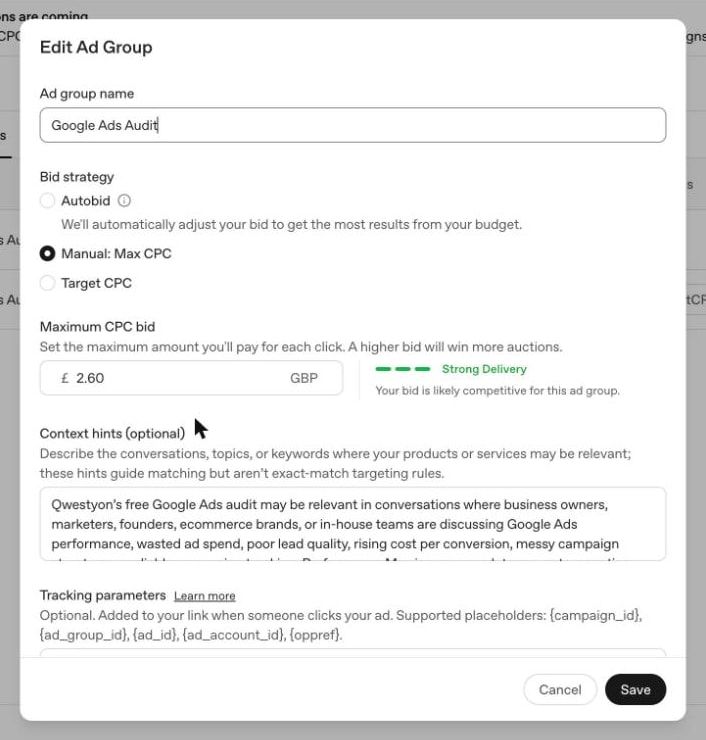
Bid strategy
The options changed on 9 November 2026, two days before this was written:
- Autobid, which OpenAI's help centre now calls Intelligent bidding. OpenAI sets the bids to get the most results from your budget.
- Target CPC, on click campaigns. You name the average cost per click you would like.
- Target CPA, on conversion campaigns. You name the average cost per conversion.
- Manual: Max CPC. A hard cap on each click. Existing ad groups keep it until 1 January 2027, when it is retired.
A target is an average the system aims for, not a ceiling. Some clicks will cost more and some less.
Beside the bid field Ads Manager shows a delivery rating. In the screenshot, a £2.60 bid is rated Strong Delivery with the note that it is likely competitive for that ad group. Use that guidance over any figure you read online, including ours. OpenAI's general suggestion for click campaigns is to start with a maximum bid of $3 to $5, about £2.25 to £3.76 on 11 November 2026.
Context hints
Context hints replace keywords. The field's own description reads: "Describe the conversations, topics, or keywords where your products or services may be relevant; these hints guide matching but aren't exact-match targeting rules."
OpenAI's guidance is to answer three questions in plain sentences:
- What do you offer? Features, services, pricing, availability, the areas you cover.
- Who is it for? The needs or circumstances it suits.
- When is it useful? The situations or decisions where it helps.
Its own examples show the level of detail it wants:
| Business | OpenAI's example hint |
|---|---|
| Running shoes | Cushioned everyday running shoes for beginners training for their first 5K |
| Accounting software | Bookkeeping software for growing retailers that need to reconcile online and in-store sales |
Each hint should carry one idea. A list of disconnected keywords is the wrong shape.
The limit that matters most: hints are not delivery instructions. "Residential plumbing services available in Chicago" describes a business. "Show this ad only to people in Chicago" is an instruction, and a hint cannot enforce it. Location belongs in the campaign settings.
Group hints around one product, service or need per ad group. When two needs want different messages or different landing pages, give them separate ad groups.
Step 6: Create your ads
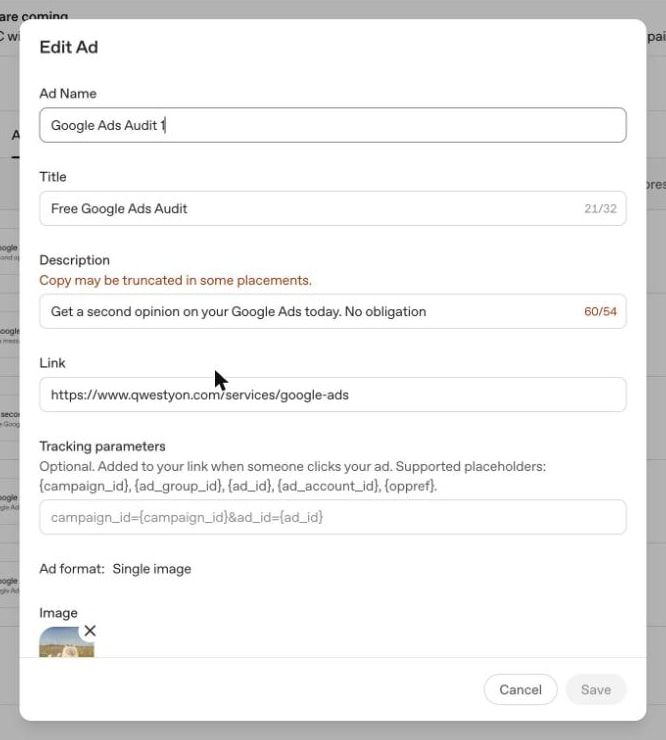
An ad has five parts:
- Title. The counter runs to 32 characters. Say what it is and who it is for.
- Description. The counter runs to 54. You can type more, but the editor warns that "copy may be truncated in some placements". Use the space for something the title did not say.
- Link. One destination per ad. Send people to the most relevant page, not the homepage.
- Ad format. Single image, or Multiple images, which takes four to six square images and has been in open beta since 26 October 2026.
- Image. One clear picture that matches the message.
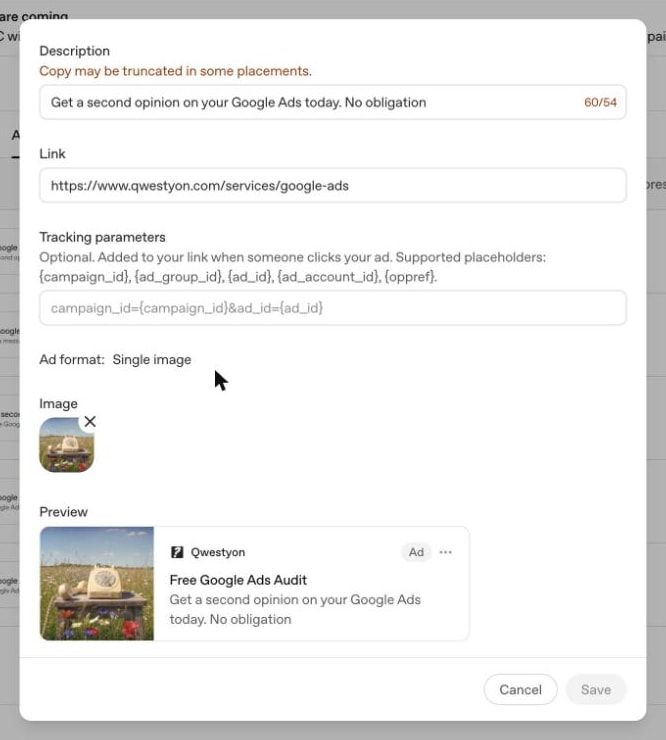
The preview at the bottom is the most useful thing on the screen. It shows the card as a person will see it: your logo and Brand Name, an Ad label, the title, the description and the image.
OpenAI is unusually direct about how many ads to write. Its guidance is to build for coverage: several distinct title and description variations for each thing you offer, each taking a different angle, so the system has more chances to find a conversation where one of them fits. We would start with three to five per ad group.
You may also see a suggested ad in your account. Ads Manager can prefill a draft from your website's metadata. OpenAI says this does not generate new copy or imagery with AI. Treat it as a first draft and rewrite it.
Step 7: Submit, check and wait
Ads go through review before they serve. Once they are approved:
- Check the status column. If anything says Not serving, hover over it to see why. OpenAI lists policy rejection, account review, business verification and billing as the usual reasons.
- Expect a reporting delay. Impressions, clicks and click-through rate refresh about every 15 minutes. Spend can lag by seven to eight hours. A £0 in the spend column next to real clicks does not mean nothing has been charged.
- Know what pausing does. OpenAI says ads can keep serving for up to 24 hours after you pause a campaign, and that spend is still billable.
Then leave it alone. We would give a new campaign two to three weeks before judging it, and change only things that are actually broken in the first week.
Mistakes that cost money
Seven to avoid
- ✓Building an ad during sign-up when you are not ready to spend. It can go live after review.
- ✓Picking the wrong country, currency or time zone. They are permanent.
- ✓Launching with no conversion event, then having nothing to judge the test by.
- ✓Writing context hints as a keyword list, or expecting them to limit where ads show.
- ✓Leaving Creative enhancement on for copy that must not be reworded.
- ✓Sending every ad to the homepage.
- ✓Renaming your brand mid-campaign, which pauses your ads until it is approved.
Free PDF
Get the ChatGPT Ads UK setup checklist
Every step in this walkthrough as a three page tick list you can work through with Ads Manager open, plus the numbers to know and a plan for the first fortnight.
What to read next
- Budgets: ChatGPT Ads cost in the UK has the minimums, the bidding rules and an estimator.
- The bigger picture: the ChatGPT Ads guide covers formats, early results and who should wait.
- Video: our free ChatGPT Ads training for e-commerce runs for 45 minutes.
- Changes: the ChatGPT Ads updates log is rewritten every month.
- Done for you: our ChatGPT ads agency service.
Sources
All OpenAI pages were read on 11 November 2026. Screenshots and account details are from Qwestyon's own OpenAI Ads Manager account on the same day.
- OpenAI Help Center, Ads Manager account setup
- OpenAI Help Center, Quickstart: launch your first campaign
- OpenAI Help Center, Billing and payment and Daily budgets
- OpenAI Help Center, Creating campaigns for ChatGPT Ads
- OpenAI Help Center, Bidding strategies and how pricing works in ChatGPT Ads
- OpenAI Help Center, Writing context hints for ChatGPT Ads
- OpenAI Help Center, Creating ads for ChatGPT Ads
- OpenAI Help Center, Ads in ChatGPT, for who sees ads
- OpenAI developer documentation, Bidding and budgets and Custom audiences
Frequently Asked Questions
Advertising on ChatGPT FAQs
Can UK businesses advertise on ChatGPT?
Yes. UK businesses have had self-serve access to OpenAI's Ads Manager since June 2026. You sign up at ads.openai.com with an OpenAI account, choose the United Kingdom as your country, and are billed in pounds. There is no minimum contract. The smallest daily campaign budget on a GBP account is £15, according to OpenAI's help centre on 11 November 2026.
How do I advertise on ChatGPT?
Open an account at ads.openai.com, set up billing and business verification, then build three things in order: a campaign (objective, location, budget), an ad group (bid strategy and context hints) and one or more ads (title, description, image and link). Ads go through review before they serve. Set up the OpenAI pixel and a conversion event before you spend so you can tell what the clicks did.
How long does it take to set up ChatGPT ads?
The account, billing and a first campaign can be built in an afternoon. What takes longer is outside your control: business verification and ad review happen on OpenAI's side, and tracking needs your website changed. Allow a few working days end to end, and do not plan a launch for the same day you sign up.
Who sees ChatGPT ads?
OpenAI says ads may appear for people on the Free and Go plans. Plus, Pro, Business, Enterprise and Edu accounts do not see ads, and ads are not shown to accounts identified as belonging to people under 18.
Can I target keywords on ChatGPT?
No. There are no keywords to bid on. You write context hints, which are plain descriptions of what you offer, who it suits and when it is useful, and OpenAI's system uses them alongside the conversation to judge relevance. Hints guide matching but are not exact-match rules, and they cannot restrict where or when an ad shows.
What are the character limits for ChatGPT ads?
In the Ads Manager on a UK account on 11 November 2026, the title field counts to 32 characters and the description field counts to 54. A longer description is accepted, but the editor warns that copy may be truncated in some placements. The interface is in beta, so check the counters on your own screen.
Do I need an agency to advertise on ChatGPT?
No. The Ads Manager is self-serve and a careful person can follow this walkthrough. An agency is worth considering if you do not have time to write and test many ad variations, if your tracking needs developer work, or if you want someone to tell you plainly whether the channel suits your offer before you spend.
Written by
Adam Rodell
Founder of Qwestyon, a Brighton-based digital marketing studio. Adam runs paid search and paid social for UK businesses and publishes original research on Generative Engine Optimisation, including the schema and AI-search audits on this blog.